
Website monitoring for agencies: what to check, how often, and who gets the alert
Monitoring one website is easy. Monitoring 60 client websites, each with a different host, a different firewall and a different client who wants to hear about it differently, is a system. This is the system we'd set up if we were starting again.
 By Jordan Sutherland · · 7 min read

Most agencies start website monitoring the same way: someone signs up for a free uptime tool, adds the sites they can remember, and points the alerts at their own inbox. It works until it doesn't. The alerts go to someone on leave. A site that was added two years ago has moved hosts and nobody updated the monitor. A client finds out about an outage from a customer, and then asks why they pay for maintenance.
Monitoring for an agency isn't a tool. It's a small system: what you check, how often, who hears about it, and what happens next. Get those four right and it runs itself.
Why agency monitoring is different
A business owner with one website needs to know one thing: is my site up? An agency has three problems that owner never has:
- Scale. Sixty sites checked every five minutes is more than 17,000 checks a day. You can't read alerts about all of them, so the system has to decide which ones reach a person.
- Variety. Every client has a different host, a different firewall and different plugins. Some will block your monitor. Some will have staging sites that are meant to be offline.
- Someone else's business. When a client's site goes down, it's their sales and their reputation. They want to know you knew, and that you did something about it.
That last one is the real reason agencies monitor. Uptime monitoring is how you prove the care in "care plan".
What to monitor on every client site
Start with the checks that catch real problems. More checks means more noise, so add the rest only when they earn their place.
Must-have
- HTTP status. Does the homepage answer with a 200? This catches dead servers, expired hosting, DNS mistakes and most PHP fatal errors.
- Response time. A homepage that takes eight seconds is "up" but losing customers. Track it per site and look at the trend, not single spikes.
- SSL certificate. An expired certificate puts a full-page browser warning in front of every visitor. It's entirely preventable.
Worth adding
- A keyword on the page. A hacked site, a "Database connection error" page or a hosting suspension notice can all return a 200. Checking that a phrase from the real page is present catches them.
- Pending updates. Not an outage, but the most common cause of the next one. Outdated plugins are one of the most common ways WordPress sites get compromised.
- PageSpeed scores. Weekly, not every minute. Useful for spotting a slow site before the client does, and for showing improvement in the monthly report.
Outside the monitor
Domain renewals belong in a calendar or with the registrar's auto-renew, not in your uptime tool. Backups should be checked by doing a test restore every quarter. A green "backup complete" tick has fooled plenty of people.

How often to check
The right interval depends on what an outage costs the client:
| Site type | Check every | Why |
|---|---|---|
| Online shop, bookings, lead generation | 1 to 5 minutes | Every minute down is lost revenue |
| Active business site | 5 minutes | Catches outages within a coffee break |
| Brochure site that rarely changes | 15 minutes | Outages matter, but minutes don't |
| Staging and development sites | Don't, or pause them | They're meant to go up and down |
Retries stop false alarms
The internet is noisy. A single failed check is often a blip: a slow DNS lookup, a server restarting for a few seconds, a network hiccup between data centres. If every single failure sends an email, you'll get dozens of alerts a week for nothing and learn to ignore them.
Set retries. A common setup is to check every 15 minutes, and when a check fails, retry three times a minute apart before declaring the site down. The cost is that a real outage takes a few minutes longer to confirm. The benefit is that when an alert does arrive, it's real.
Remember this when you read incident times. A monitor records when it noticed the outage, after its retries, not the exact second the site fell over.
Who gets the alert
This is the decision most agencies never make on purpose, and it's the one clients notice.
Your team, always
Alerts should go to more than one person, or to a shared inbox someone owns. One person's inbox is a single point of failure: holidays, sick days and weekends all happen. If you use a team chat tool, route alerts there too, so the whole team sees when someone picks one up.
The client, when it helps them
There's a good case for sending the client the same downtime and recovery emails you receive:
- They hear about the outage from you, not from a customer.
- The recovery email arrives a few minutes later and shows you fixed it.
- Every alert is a small, visible reminder of what their care plan does.
But only switch it on for sites where alerts are reliable. A site whose firewall blocks your monitor will send false "your site is down" emails, and nothing burns client trust faster. Fix the block first (we wrote a full guide on that), then turn client alerts on.
When a site goes down: a five-step routine
Write this down and share it with the team, so whoever picks up the alert does the same thing:
- Confirm it. Load the site on mobile data, not the office Wi-Fi.
- Read the error. A 403 or challenge page usually means blocked, not down. A 5xx or a timeout from everywhere means it's real.
- Check the host. Look at the hosting company's status page and your other sites on the same server. If five sites went down together, it's the server.
- Tell the client. Before they phone you. "We've seen it and we're on it" is enough.
- Log what happened. Cause, fix and time spent. It goes in the monthly report, and it's billable on most care plans.
Keep a history you can show the client
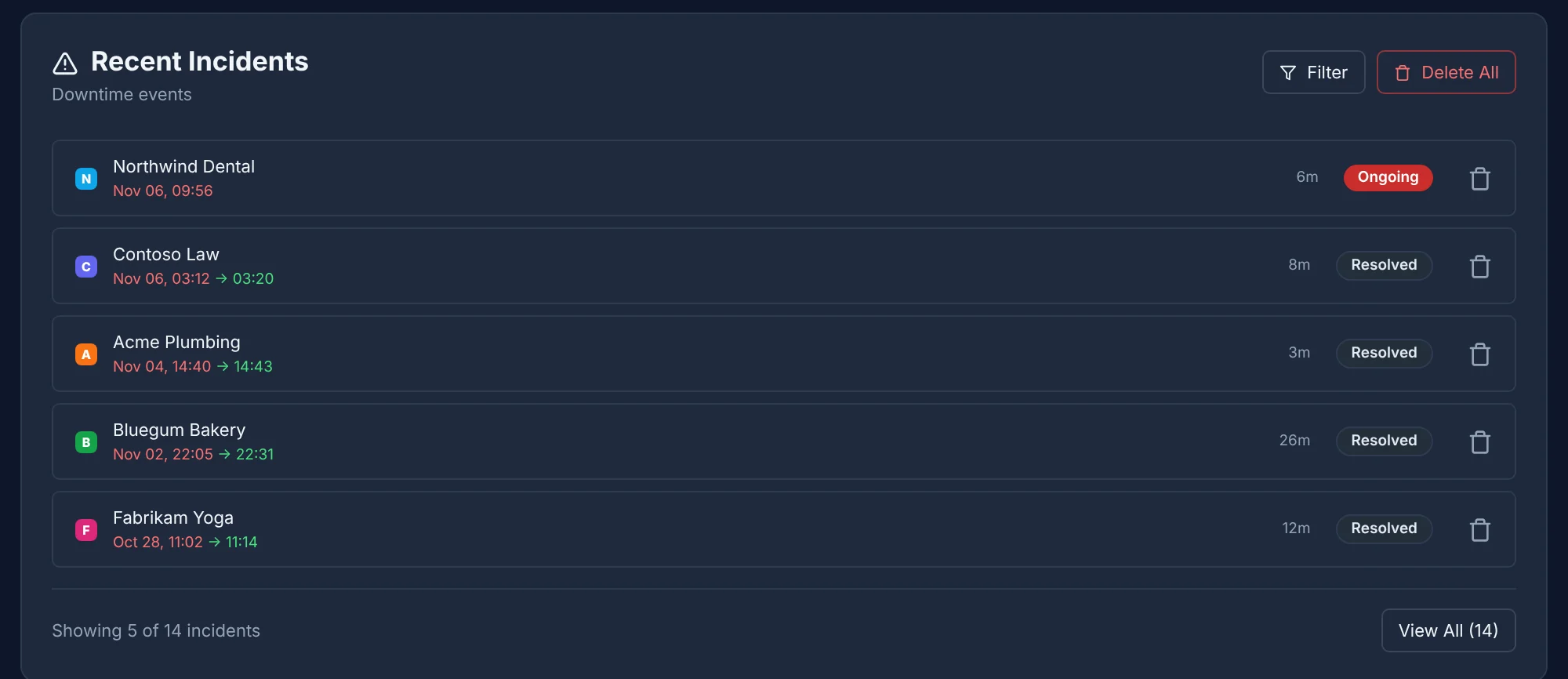
An incident log turns "the site was down for a bit last month" into a fact: down 12 October from 03:12 for 8 minutes, hosting provider restarted the server. That history is useful in three conversations:
- The monthly report: uptime percentage and every incident, so the client sees the work.
- The hosting conversation: if one host causes most of your incidents, the log is the evidence that it's time to move.
- The renewal conversation: twelve months of 99.9% uptime is the strongest argument for renewing a care plan.
Setting up 50 sites in an afternoon
The setup is quick if you do it in the right order:
- List every site from your invoices, hosting accounts and DNS records. You'll find a few you'd forgotten about.
- Add them all to the monitor with sensible defaults: 5 minutes for shops and lead-generation sites, 15 for brochure sites.
- Wait an hour, then look at what's red. Anything red that loads fine on your phone is being blocked. Allow the monitor on those sites before you switch on any alerts.
- Group sites by client, so alerts, reports and hours line up with who you invoice.
- Switch on team alerts for everything, then client alerts for care plan clients whose sites are reliably green.
- Pause, don't delete, sites that are being rebuilt or are seasonal, so you keep their history.
Choosing a tool
There are good tools at every price, and the right one depends on what else you need it to do. Prices change often, so check each vendor's own pricing page before you decide.
| Tool | Best at | Think about |
|---|---|---|
| UptimeRobot | Simple uptime checks with a generous free tier | Monitoring only: no WordPress updates, credentials or time tracking |
| Better Stack | Incident management and status pages for engineering teams | Built for software teams more than for agencies with client sites |
| ManageWP / MainWP | Running WordPress updates and backups across many sites | WordPress only; uptime monitoring is an add-on or extension, and MainWP is self-hosted |
| Uptime Kuma | Free, open-source monitoring you host yourself | You maintain the server; no client access or agency features |
| 200 Online | Uptime, WordPress updates, client logins, hours and a work board for agencies, in one dashboard | Built for agencies and freelancers; priced in rand, free for 5 sites |
Whatever you choose, the system matters more than the tool. Check the right things, at the right interval, with retries, and make sure the right people hear about it. Do that, and your clients will find out about outages from you, if they find out at all.
Frequently asked questions
How often should I monitor a client's website?
Every 1 to 5 minutes for online shops, booking systems and anything that earns money directly; every 15 minutes for brochure sites. Use retries so a single failed check doesn't send an alert.
Should clients get downtime alerts?
For clients on a care plan who want them, yes, and ideally the same alert you get, so they know you're already on it. Switch client alerts off for any site that is producing false alarms until it's fixed.
What is the difference between uptime monitoring and website management tools?
Uptime monitoring checks from outside whether a site responds. Website management tools such as ManageWP or MainWP connect to WordPress from inside to run updates and backups. Agencies usually need both, ideally in the same dashboard.
What should I do when a client website goes down?
Confirm it from a second network, check whether the monitor is being blocked, look at the hosting status page, then contact the client before they contact you, even if all you can say is that you're on it.
Keep reading
 Troubleshooting
Your site shows as down but works fine? How to stop firewalls blocking your uptime monitor
A site that works for you but shows as down usually means a firewall is blocking the monitor. How to tell the difference and fix it in Cloudflare and cPanel.
 Agency business
How to price a website care plan in South Africa
What to include in a website care plan, how to price it in rand, and how to prove its value every month. With worked examples you can copy.
 WordPress
How to update WordPress plugins on 50 client sites without breaking them
A safe weekly routine for updating WordPress plugins and themes across dozens of client sites, and what to do when an update breaks one.